Workflows
Workflows sequence one or more task templates and configure one optional trigger. The workflow itself is static orchestration; the trigger is a workflow property.
Current trigger types:
| Trigger | Meaning | Typical use |
|---|---|---|
| None | Manual runs only. | Combine templates and tap Trigger now when needed. |
| Schedule | Run the workflow automatically at a configured date, time, and recurrence. | Run check-in and lookup every morning. |
| Notification | Run the workflow after a matching phone notification arrives. | Handle a specific app message. |
Saving a workflow does not enable its trigger automatically. The switch in the workflow list controls only whether the trigger is enabled. The list Trigger now action runs the workflow immediately and ignores trigger conditions.
Create a workflow
Entry: Tasks -> Workflows -> New.
Basic flow:
- Create one or more Task Templates with description, target app, and user playbook.
- Create a Workflow and enter its name.
- Tap Add and choose an existing template from the template picker.
- Adjust step order when needed.
- In Trigger, choose None, Schedule, or Notification.
- Save the workflow.
- Back on the workflow list, enable the trigger when needed, or tap Trigger now to run manually.
Basic fields
| Frontend field / area | Meaning | Required | Example |
|---|---|---|---|
| Workflow name | Readable name shown in the workflow list. | Yes | Daily check-in |
| Steps | Templates that will run in order. The first version supports sequential execution and no nested workflows. | At least one | Check-in, order lookup |
| Add | Opens the template picker and adds an existing template to the workflow. | - | - |
| Trigger | Chooses how this workflow starts automatically. | Yes | None / Schedule / Notification |
| Trigger switch | Shown in the workflow list. It enables or disables only the trigger. | - | On |
| Trigger now | Shown in the workflow list. It submits one workflow run immediately. | - | - |
Schedule trigger fields
After choosing Schedule, date, time, and repeat controls appear.
| Frontend field | Meaning | Required | Example |
|---|---|---|---|
| Run time | Preview generated from the date and time controls. | Yes | 2026-05-06 11:00 |
| Pick Date | Opens the date picker. | Yes | 2026-05-06 |
| Pick Time | Opens the time picker, using 24-hour time. | Yes | 11:00 |
| Repeat | Selects Once, Daily, or Weekly. | Yes | Daily |
| Selected days | Appears for Weekly repeat. Select at least one weekday. | Required for Weekly | Mon / Wed / Fri |
If the selected time has already passed, choose a new time before saving.
Notification trigger fields
After choosing Notification, notification matching controls appear.
| Frontend field | Meaning | Required | Example |
|---|---|---|---|
| Select App | Select which app's notifications to listen to. The UI searches installed apps from the local app snapshot. | Yes | WeChat (com.tencent.mm) |
| Title match | Match notification title. Empty means no title restriction. | No | WuWei |
| Body match | Match notification body. Empty means no body restriction. | No | Are you there? |
| Trigger interval (seconds) | Minimum interval between two notification triggers for this workflow. | Yes | 60 |
| Trigger time start (HH:mm, optional) | Start of the active time window. | No | 12:00 |
| Trigger time end (HH:mm, optional) | End of the active time window. | No | 13:00 |
| Enable LLM condition | Ask the model for an extra judgment after normal matching passes. | Yes | On / Off |
| LLM condition | Natural-language matching condition. Fill it only when LLM condition is enabled. | No | The message is asking whether I am available. |
Empty time fields mean anytime
The frontend says leaving either start or end empty allows triggering at any time. Leave both fields empty when no active time window is needed.
What belongs in templates
Workflow steps only reference task templates. Configure these in the template detail page:
- Task description.
- Target app. Tap Select App and search installed apps from the local app snapshot.
- User playbook.
- The legacy TASK_DECOMPOSE stage switch. It is off by default to avoid accidental splitting for single-template tasks.
- Route mode and task route editing.
Notification title and body
Here is an example notification:
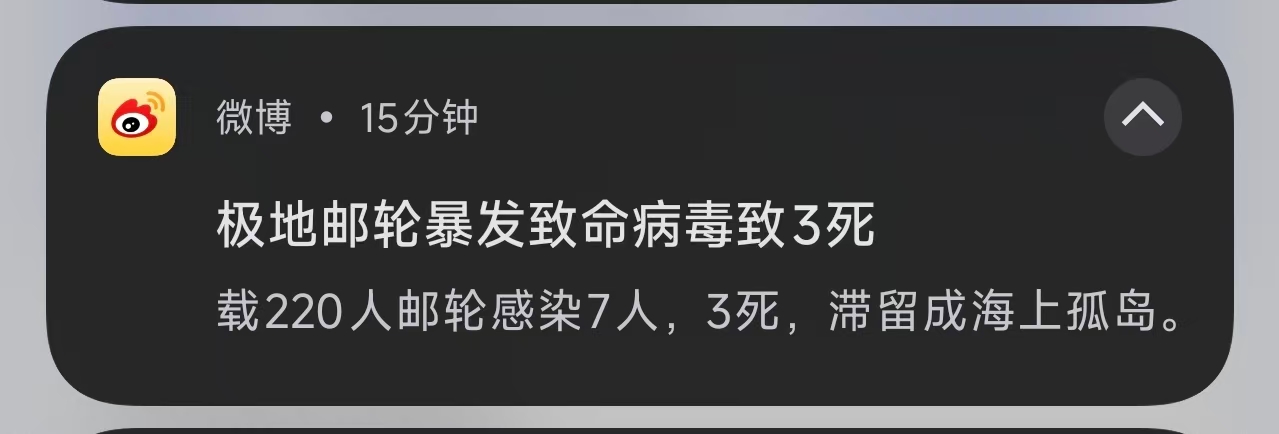
In this notification:
- The first line is the title.
- The second line is the body text.
Title match and body match are contains matches. If both are filled, both must match. If one field is empty, that field is unrestricted.
When to use an LLM condition
Use keyword matching for clear and stable rules, such as a specific sender or order number.
Use an LLM condition when the rule is more semantic:
The LLM condition runs only after package, title, and body matching have passed. It is more flexible, but it adds model cost and latency.
Trigger type after import
Workflow portable import does not carry trigger configuration. After a successful import, AutoLXB opens the imported object's edit page. Imported workflows start with trigger type empty and trigger disabled. To start automatically, choose Schedule or Notification again, save, then enable the trigger from the workflow list.