Notification-Triggered Tasks
Notification-triggered tasks run after AutoLXB reads a phone notification and finds a matching rule. The rule can match package, title, body text, and optional LLM conditions.
Common use cases:
- Run a task after a notification from a specific app.
- Reply after receiving a message from a specific contact or group.
- Open an order, logistics, or ticket app after a matching notification arrives.
Create a rule
Entry: Tasks -> Automation -> Notification Triggers -> New.
The create/edit page is organized into these sections:
- Basic info: rule name, task description, and action playbook.
- Trigger conditions: app package, title/body matching, trigger interval, time window, and optional LLM condition.
- Execution preference: route mode and screen recording.
- Save trigger: save or submit the rule.
Field guide
Field names below follow the actual frontend labels.
| Frontend field | Meaning | Required | Example |
|---|---|---|---|
| Rule name | A readable name for the rule. It can be empty. | No | Reply to WeChat message |
| Task description (what to do after trigger) | The task to run after the rule matches. | Yes | Open WeChat, find WuWei, and reply once. |
| Action playbook (optional) | Extra execution guidance for the model. | No | Search WuWei from the top-right search button. |
| Package match (required) - Select App | Select which app's notifications to listen to. The current UI selects one package from the local app snapshot. | Yes | WeChat (com.tencent.mm) |
| Title match (optional) | Match notification title. Empty means no title restriction. | No | WuWei |
| Body match (optional) | Match notification body. Empty means no body restriction. | No | Are you there? |
| Trigger interval (seconds) | Minimum interval between two triggers of this rule. | Yes | 60 |
| Trigger time start (HH:mm, optional) | Start of the active time window. | No | 12:00 |
| Trigger time end (HH:mm, optional) | End of the active time window. | No | 13:00 |
| Enable LLM condition | Ask the model for an extra judgment after normal matching passes. | Yes | On / Off |
| LLM condition (optional) | Natural-language matching condition. Visible only when LLM condition is enabled. | No | The message is asking whether I am available. |
| Task route mode | Shown as Off / On. When On, the triggered task tries its saved route first. | Yes | On |
| Open task route editor | Appears only after the rule has been saved once. Opens this exact task's route editor. | No | - |
| Export Portable Task | Appears only after the rule has been saved once. Exports the task config and route. | No | - |
| Record screen for triggered task | Records task execution after the rule matches. | Yes | On |
Empty time fields mean anytime
The frontend says: leaving either start or end empty allows triggering at any time. If you do not need a time window, leave both fields empty.
What are title and body?
Here is an example notification:
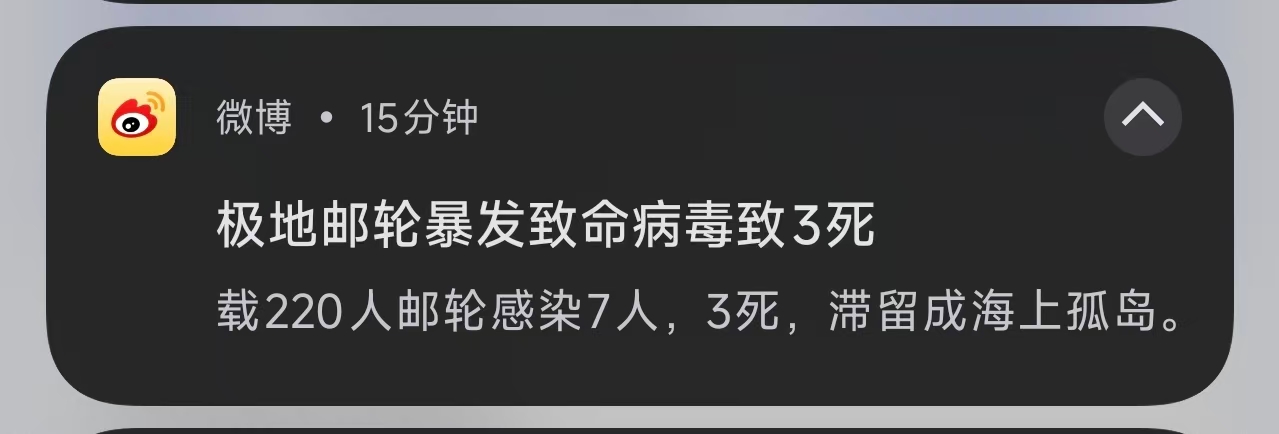
In this notification:
- The first line is the title.
- The second line is the body text.
Title match and body match are contains matches:
- If title match is
WuWei, it matches titles containingWuWei. - If body match is
Are you there, it matches body text containing that phrase. - If both are filled, both must match.
- If one field is empty, that field is not restricted.
You do not need both title and body
If you only care who sent the notification, title may be enough. If you only care about content, body may be enough. Filling both is more precise but easier to miss if notification text changes.
When to use an LLM condition
Use keyword matching for clear and stable rules, such as a specific sender or order number.
Use an LLM condition when the rule is more semantic:
The LLM condition runs only after package, title, and body matching have passed. It is more flexible, but it adds model cost and latency.
Tips
- Start with package + one title/body keyword, then add complexity after you confirm it triggers.
- Do not set trigger interval too short, or one burst of notifications may trigger repeatedly.
- Test auto-reply tasks with safe text first.
- If notification text changes often, use fewer exact keywords and more semantic LLM conditions.
- If the execution path is stable, save a route and turn on Task route mode.
Imported rules
Imported notification-triggered tasks are disabled by default. After import, review package match, title/body matching, LLM condition, task description, and route settings before enabling the rule.